
Final Project: Create a Daily Fitness Tracker App
Estimated time: 60 minutes
Welcome to this project on creating a Daily Fitness Tracker app in Android Studio. This project builds on the learning assets you've viewed and the Login, Registration, and Activities labs. So, you have all the necessary knowledge to successfully complete this project.
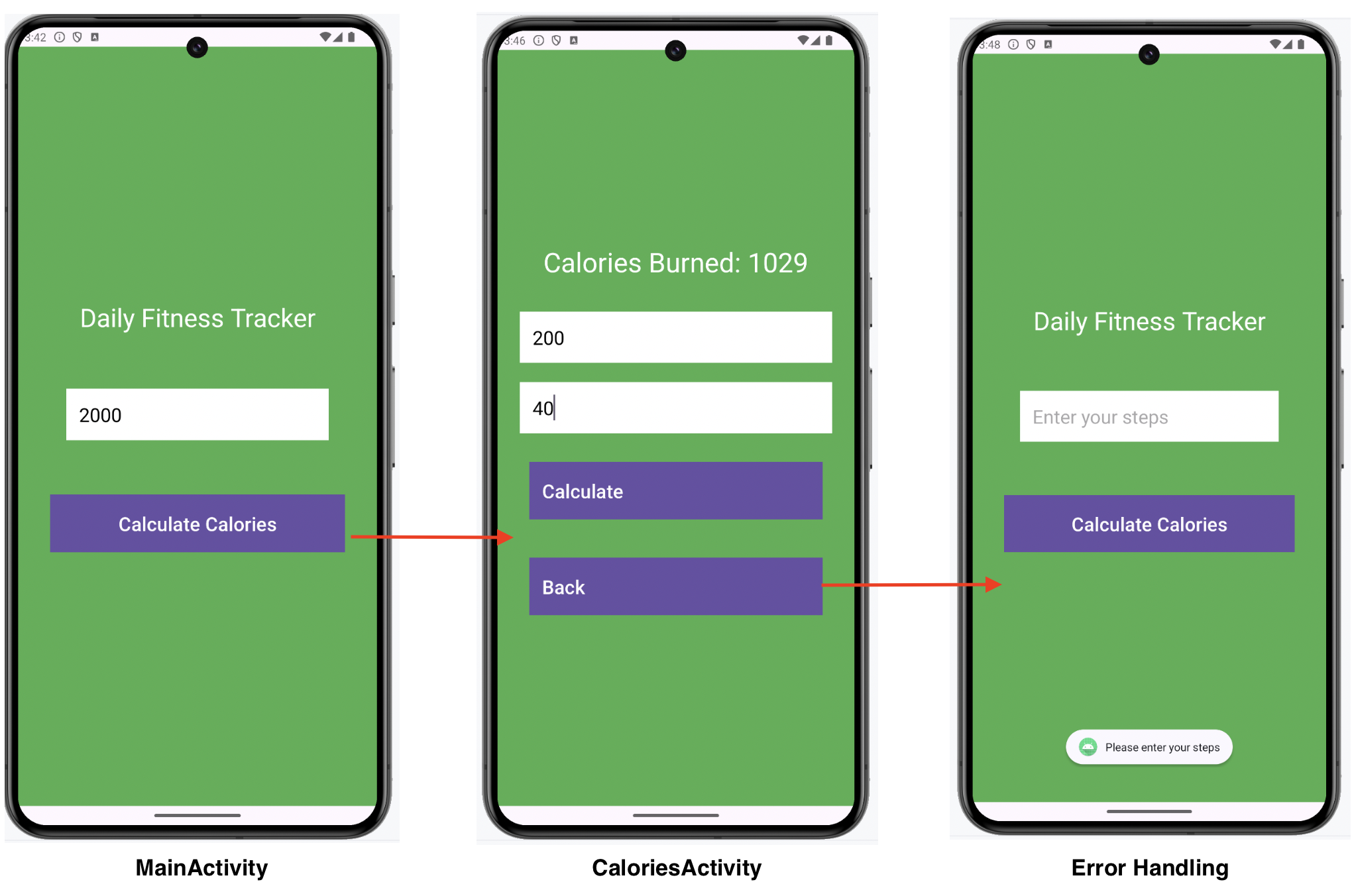
The final result will look something like this:
Objectives
After completing this project, you will be able to:
- Create a user interface for a Daily Fitness Tracker app using LinearLayout
- Handle user input and navigation between activities
- Display a toast message for validation
- Calculate and display calories burned based on user input
Key terms
- Activity: Single screen with a user interface
- Intent: Abstract description of an operation to be performed
- findViewById: Method used to retrieve a view by its ID
- setOnClickListener: Method used to set a callback for when a view is selected
- startActivity: Method used to start a new activity
- Toast: Small message that pops up on the screen
- Toast.makeText: Method used to create a toast message
Instructions
Your task is to implement the following user stories in this project. A user story is an informal, straightforward description of a software feature from the end user's perspective. It aims to convey how the feature will offer value to the user.
User stories
- As a user, I want to enter the number of steps I've taken to track my daily activity.
- As a user, I want to enter my weight and age to get a more accurate calculation of the calories burned.
- As a user, I want to see the calories I've burned based on my steps, weight, and age to monitor my fitness progress.
- As a user, I want to navigate back to the main screen from the Calories screen to enter new data if required.
Step 1: Create a new project in Android Studio
Open Android Studio and create a new project with the following settings:
- Select
Phone and TabletandEmpty Views Activityas the project type. - Set the
Nameof the application toDaily Fitness Tracker. - Set the
Package nametocom.example.dailyfitnesstracker. - Set the
LanguagetoJava. - Set the
Minimum SDKtoAPI 24. - Set
Build configuration languagetoGroovy DSK.
Step 2: Create the main activity layout
Open
activity_main.xmlin theres/layoutdirectory.Add a
LinearLayoutas the root element with the following attributes:
   android:layout_width="match_parent"
   android:layout_height="match_parent"
   android:orientation="vertical"
   android:padding="16dp"
   android:gravity="center"
android:background="@color/green"- Add a
TextViewfor the title with the following attributes:
   android:id="@+id/app_title"
   android:layout_width="wrap_content"
   android:layout_height="wrap_content"
   android:gravity="center"
   android:padding="24dp"
   android:text="Daily Fitness Tracker"
   android:textSize="32sp"
   android:layout_gravity="center_horizontal"
android:textColor="@color/white"- Add an
EditTextfor user input with the following attributes:
   android:id="@+id/steps_input"
   android:layout_width="match_parent"
   android:layout_height="wrap_content"
   android:hint="Enter your steps"
   android:inputType="number"
   android:layout_margin="44dp"
   android:padding="16dp"
   android:textSize="24sp"
   android:minHeight="60dp"
   android:background="@color/white"
android:textColor="@color/black"- Add a
Buttonfor calculation with the following attributes:
   android:id="@+id/calculate_calories_button"
   android:layout_width="match_parent"
   android:layout_height="wrap_content"
   android:layout_margin="24dp"
   android:background="@android:color/black"
   android:minHeight="60dp"
   android:padding="16dp"
   android:text="Calculate Calories"
   android:textColor="@color/white"
   android:textSize="24sp"
Step 3: Create the calories activity layout
Create a new “Empty Views Activity” named
CaloriesActivityin thecom.example.dailyfitnesstrackerpackage. This will create a corresponding XML layout file namedactivity_calories.xmlin theres/layoutdirectory.Open the
activity_calories.xmlfile in design view.Add a
LinearLayoutas the root element with the following attributes:
   android:layout_width="match_parent"
   android:layout_height="match_parent"
   android:orientation="vertical"
   android:padding="16dp"
   android:gravity="center"
android:background="@color/green"- Add a
TextViewfor displaying calories burned with the following attributes:
   android:id="@+id/calories_burned"
   android:layout_width="wrap_content"
   android:layout_height="wrap_content"
   android:layout_margin="12dp"
   android:padding="16dp"
   android:text="Calories Burned: 0"
   android:textColor="@color/white"
android:textSize="34sp"- Add an
EditTextfor weight input with the following attributes:
   android:id="@+id/weight_input"
   android:layout_width="match_parent"
   android:layout_height="wrap_content"
   android:layout_margin="12dp"
   android:background="@color/white"
   android:hint="Enter your weight (kg)"
   android:inputType="number"
   android:minHeight="60dp"
   android:padding="16dp"
   android:textColor="@color/black"
android:textSize="24sp"- Add an
EditTextfor age input with the following attributes:
   android:id="@+id/age_input"
   android:layout_width="match_parent"
   android:layout_height="wrap_content"
   android:layout_margin="12dp"
   android:background="@color/white"
   android:hint="Enter your age"
   android:inputType="number"
   android:minHeight="60dp"
   android:padding="16dp"
   android:textColor="@color/black"
android:textSize="24sp"- Add a
Buttonfor calculation with the following attributes:
   android:id="@+id/calculate_button"
   android:layout_width="match_parent"
   android:layout_height="wrap_content"
   android:layout_margin="24dp"
   android:background="@android:color/black"
   android:minHeight="60dp"
   android:padding="16dp"
   android:text="Calculate"
   android:textAlignment="textStart"
   android:textColor="@color/white"
android:textSize="24sp"- Add a
Buttonfor going back to the main activity with the following attributes:
   android:id="@+id/back_button"
   android:layout_width="match_parent"
   android:layout_height="wrap_content"
   android:layout_margin="24dp"
   android:background="@android:color/black"
   android:minHeight="60dp"
   android:padding="16dp"
   android:text="Back"
   android:textAlignment="textStart"
   android:textColor="@color/white"
   android:textSize="24sp"
Step 4: Update the MainActivity.java file
In the
MainActivity.javafile, retrieve the steps entered by the user. If no steps are entered, display a toast message asking the user to enter steps. If steps are entered, navigate to theCaloriesActivityand pass the steps value using an Intent.Passing the steps is fairly simple. You already know how to start a new activity using the
startActivtymethod. You can send information to this activity using theputExtramethod on the Intent as follows:
 // Convert the steps text to an integer
  int steps = Integer.parseInt(stepsText);

  // Create an Intent to start the CaloriesActivity
  Intent intent = new Intent(MainActivity.this, CaloriesActivity.class);

  // Add the steps value to the Intent as an extra
  intent.putExtra("steps", steps); // "steps" is the key, and steps is the value

  // Start the CaloriesActivity
  startActivity(intent);
Note: This code transfers the step count from MainActivity to CaloriesActivity.
Set up the click listener for the Calculate button to trigger this behavior.
Hint: Use the
calculateCaloriesButton.setOnClickListenermethod as shown in the previous labs.
Step 5: Implement the CaloriesActivity.java file
From the
CaloriesActivity.javafile, retrieve the user's weight and age and calculate the calories burned using the given formula:private double calculateCalories(int weight, int age, int steps) { // MET value for walking at moderate speed (e.g., 3.5 METs) double met = 3.5; // Average step length in miles (e.g., 2,000 steps per mile) double stepsPerMile = 2000; // Convert steps to miles double miles = steps / stepsPerMile; // Adjust the MET value based on age (example adjustment, you can refine this) double ageFactor = 1 - (age - 20) * 0.001; // Calories burned per mile = METs * weight (lbs) * miles * ageFactor double caloriesPerMile = met * weight * miles * ageFactor; return caloriesPerMile; }You can now call this function in when the Calculate button is selected using the
calculateButton.setOnClickListenermethod.Remember you are getting the number of steps from the previous activity in the Intent. Here is how to get the value from the Intent:
// Retrieves the integer value passed from the previous activity via the Intent.
// The key "steps" is used to get the value, and if not found, it defaults to 0.

int steps = getIntent().getIntExtra("steps", 0);
Display the result rounded to the nearest whole number.
Hint: Use the below code:
// Calculates the number of calories burned by calling the calculateCalories method, using the weight, age, and steps as inputs.
double calories = calculateCalories(weight, age, steps);

// Updates the caloriesBurned TextView to display the calculated calories,
// rounding the value to the nearest whole number for a cleaner display.
caloriesBurned.setText("Calories Burned: " + Math.round(calories));
Note: This provides clarity on how the calories are calculated and displayed in the TextView.
Implement a Back button to navigate to the main activity using the
finish()method.// Set an OnClickListener for the backButton to handle click events. backButton.setOnClickListener(new View.OnClickListener() { @Override public void onClick(View v) { // Call finish() to close the current activity and return to the MainActivity. finish(); } });
Step 6: Update the AndroidManifest.xml file
Ensure both activities are declared in
AndroidManifest.xml:
<application
    android:allowBackup="true"
    android:icon="@mipmap/ic_launcher"
    android:label="@string/app_name"
    android:roundIcon="@mipmap/ic_launcher_round"
    android:supportsRtl="true"
    android:theme="@style/AppTheme">
    <activity android:name=".CaloriesActivity" />
    <activity android:name=".MainActivity">
        <intent-filter>
            <action android:name="android.intent.action.MAIN" />
            <category android:name="android.intent.category.LAUNCHER" />
        </intent-filter>
    </activity>
</application>
Step 7: Run the application
- Ensure your Android virtual device (AVD) is set up.
- Select the Run button in Android Studio.
- Select your AVD and wait for the application to launch.
- Verify that the main screen appears, and on entering the steps taken and selecting Calculate Calories, you are taken to the Calories screen displaying the calculated calories burned. Ensure that the Back button navigates to the main activity and that the toast message is displayed if no steps are entered.
You have now successfully created the Daily Fitness Tracker app with a user interface for entering steps, calculating calories burned, and navigating between activities.
What's Next
Now that you've created the Daily Fitness Tracker app, here are some suggestions on what to try next using the Gemini AI available in Android Studio:
- Enhance UI/UX:
- Use Gemini AI to suggest improvements for your app's user interface and user experience. Experiment with different layouts, styles, and themes to make your app more visually appealing and user-friendly.
- Add More Features:
- Extend the functionality of your app by adding new features, such as tracking additional fitness metrics (for example, distance walked, active minutes, and so on).
- Use Gemini AI to generate code snippets or provide guidance on how to integrate these features seamlessly.
- Implement Advanced Calculations:
- Incorporate more complex algorithms for calculating calories burned, taking into account factors like heart rate, activity intensity, and duration.
- Use Gemini AI to help optimize your calculations and ensure accuracy.
- Add Data Persistence:
- Implement local storage or cloud-based databases to save users' fitness data and allow them to track their progress over time.
- Use Gemini AI to suggest the best storage solutions and provide sample code for implementation.
By leveraging Gemini AI in Android Studio, you can continue to enhance and expand your Daily Fitness Tracker app, making it more robust and feature-rich. Happy coding!
Solution
Here are the file contents if you're stuck and want to see my version of the final application running.
- java/com/example/dailyfitnesstracker/MainActivity.java
package com.example.dailyfitnesstracker;

import android.content.Intent; // Importing Intent class to navigate between activities
import android.os.Bundle; // Importing Bundle class for passing data between activities
import android.view.View; // Importing View class to handle user interface elements
import android.widget.Button; // Importing Button class for button elements
import android.widget.EditText; // Importing EditText class for text input fields
import android.widget.Toast; // Importing Toast class for displaying short messages
import androidx.appcompat.app.AppCompatActivity; // Importing AppCompatActivity for activity lifecycle management

public class MainActivity extends AppCompatActivity {

    private EditText stepsInput; // Declare an EditText variable to capture user input for steps

    @Override
    protected void onCreate(Bundle savedInstanceState) {
        super.onCreate(savedInstanceState); // Call the superclass method to create the activity
        setContentView(R.layout.activity_main); // Set the content view to the activity_main layout

        stepsInput = findViewById(R.id.steps_input); // Initialize the EditText for steps input
        Button calculateCaloriesButton = findViewById(R.id.calculate_calories_button); // Initialize the button for calculation

        // Set an OnClickListener for the calculate button
        calculateCaloriesButton.setOnClickListener(new View.OnClickListener() {
            @Override
            public void onClick(View v) {
                String stepsText = stepsInput.getText().toString(); // Get the text input from the user
                if (stepsText.isEmpty()) { // Check if the input is empty
                    Toast.makeText(MainActivity.this, "Please enter your steps", Toast.LENGTH_SHORT).show(); // Show a toast message
                } else {
                    // Convert the steps text to an integer
                    int steps = Integer.parseInt(stepsText);

                    // Create an Intent to start the CaloriesActivity
                    Intent intent = new Intent(MainActivity.this, CaloriesActivity.class);

                    // Add the steps value to the Intent as an extra
                    intent.putExtra("steps", steps); // "steps" is the key, and steps is the value

                    // Start the CaloriesActivity
                    startActivity(intent);
                }
            }
        });
    }
}
- res/layout/activity_main.xml
<?xml version="1.0" encoding="utf-8"?>
<LinearLayout xmlns:android="http://schemas.android.com/apk/res/android"
   android:layout_width="match_parent"
   android:layout_height="match_parent"
   android:orientation="vertical"
   android:padding="16dp"
   android:gravity="center"
   android:background="@color/green">

   <TextView
     android:id="@+id/app_title"
     android:layout_width="wrap_content"
     android:layout_height="wrap_content"
     android:gravity="center"
     android:padding="24dp"
     android:text="Daily Fitness Tracker"
     android:textSize="32sp"
     android:layout_gravity="center_horizontal"
     android:textColor="@color/white" />

   <EditText
     android:id="@+id/steps_input"
     android:layout_width="match_parent"
     android:layout_height="wrap_content"
     android:hint="Enter your steps"
     android:inputType="number"
     android:layout_margin="44dp"
     android:padding="16dp"
     android:textSize="24sp"
     android:minHeight="60dp"
     android:background="@color/white"
     android:textColor="@color/black" />

   <Button
     android:id="@+id/calculate_calories_button"
     android:layout_width="match_parent"
     android:layout_height="wrap_content"
     android:layout_margin="24dp"
     android:background="@android:color/black"
     android:minHeight="60dp"
     android:padding="16dp"
     android:text="Calculate Calories"
     android:textColor="@color/white"
     android:textSize="24sp" />
</LinearLayout>
- java/com/example/dailyfitnesstracker/CaloriesActivity.java
package com.example.dailyfitnesstracker; // Package declaration for the application

import android.os.Bundle; // Importing Bundle class for passing data between activities
import android.view.View; // Importing View class for handling UI elements
import android.widget.Button; // Importing Button class for button UI elements
import android.widget.EditText; // Importing EditText class for input fields
import android.widget.TextView; // Importing TextView class for displaying text
import android.widget.Toast; // Importing Toast class for displaying brief messages
import androidx.appcompat.app.AppCompatActivity; // Importing AppCompatActivity for compatibility with older Android versions

public class CaloriesActivity extends AppCompatActivity { // CaloriesActivity class extending AppCompatActivity
   private EditText weightInput; // Declaring EditText variable for weight input
   private EditText ageInput; // Declaring EditText variable for age input
   private TextView caloriesBurned; // Declaring TextView variable to display calories burned

   @Override
   protected void onCreate(Bundle savedInstanceState) { // onCreate method for initializing the activity
       super.onCreate(savedInstanceState); // Calling the superclass method
       setContentView(R.layout.activity_calories); // Setting the content view to the layout defined in activity_calories.xml

       weightInput = findViewById(R.id.weight_input); // Initializing weightInput with the EditText view
       ageInput = findViewById(R.id.age_input); // Initializing ageInput with the EditText view
       caloriesBurned = findViewById(R.id.calories_burned); // Initializing caloriesBurned with the TextView view

       Button calculateButton = findViewById(R.id.calculate_button); // Initializing the Calculate button
       Button backButton = findViewById(R.id.back_button); // Initializing the Back button

       // Setting an OnClickListener for the Calculate button
       calculateButton.setOnClickListener(new View.OnClickListener() {
           @Override
           public void onClick(View v) { // onClick method when the button is clicked
               int steps = getIntent().getIntExtra("steps", 0); // Retrieving the steps passed from MainActivity
               if (steps == 0) { // Checking if steps are zero
                   Toast.makeText(CaloriesActivity.this, "Please enter steps in the main screen", Toast.LENGTH_SHORT).show(); // Displaying a toast message if steps are zero
                   finish(); // Finishing the activity to return to MainActivity
                   return; // Exiting the onClick method
               }

               // Retrieving the weight and age input from the EditText fields
               int weight = Integer.parseInt(weightInput.getText().toString()); // Parsing the weight input to an integer
               int age = Integer.parseInt(ageInput.getText().toString()); // Parsing the age input to an integer

               // Calculating the calories burned using the provided inputs
               double calories = calculateCalories(weight, age, steps); // Calling the method to calculate calories burned
               caloriesBurned.setText("Calories Burned: " + Math.round(calories)); // Displaying the calories burned rounded to the nearest whole number
           }
       });

       // Setting an OnClickListener for the Back button
       backButton.setOnClickListener(new View.OnClickListener() {
           @Override
           public void onClick(View v) { // onClick method when the button is clicked
               finish(); // Finishing the activity to return to MainActivity
           }
       });
   }

   // Method to calculate calories burned based on weight, age, and steps
   private double calculateCalories(int weight, int age, int steps) {
       // MET value for walking at moderate speed (e.g., 3.5 METs)
       double met = 3.5;
       // Average step length in miles (e.g., 2,000 steps per mile)
       double stepsPerMile = 2000;
       // Convert steps to miles
       double miles = steps / stepsPerMile;
       // Adjust the MET value based on age (example adjustment, you can refine this)
       double ageFactor = 1 - (age - 20) * 0.001;
       // Calories burned per mile = METs * weight (lbs) * miles * ageFactor
       double caloriesPerMile = met * weight * miles * ageFactor; // Calculating the calories burned
       return caloriesPerMile; // Returning the calculated calories burned
   }
}
- res/layout/activity_calories.xml
  <?xml version="1.0" encoding="utf-8"?>
   <LinearLayout xmlns:android="http://schemas.android.com/apk/res/android"
       android:layout_width="match_parent"
       android:layout_height="match_parent"
       android:orientation="vertical"
       android:padding="16dp"
       android:gravity="center"
       android:background="@color/green">

       <TextView
           android:id="@+id/calories_burned"
           android:layout_width="wrap_content"
           android:layout_height="wrap_content"
           android:layout_margin="12dp"
           android:padding="16dp"
           android:text="Calories Burned: 0"
           android:textColor="@color/white"
           android:textSize="34sp" />

       <EditText
           android:id="@+id/weight_input"
           android:layout_width="match_parent"
           android:layout_height="wrap_content"
           android:layout_margin="12dp"
           android:background="@color/white"
           android:hint="Enter your weight (lbs)"
           android:inputType="number"
           android:minHeight="60dp"
           android:padding="16dp"
           android:textColor="@color/black"
           android:textSize="24sp" />

       <EditText
           android:id="@+id/age_input"
           android:layout_width="match_parent"
           android:layout_height="wrap_content"
           android:layout_margin="12dp"
           android:background="@color/white"
           android:hint="Enter your age"
           android:inputType="number"
           android:minHeight="60dp"
           android:padding="16dp"
           android:textColor="@color/black"
           android:textSize="24sp" />

       <Button
           android:id="@+id/calculate_button"
           android:layout_width="match_parent"
           android:layout_height="wrap_content"
           android:layout_margin="24dp"
           android:background="@android:color/black"
           android:minHeight="60dp"
           android:padding="16dp"
           android:text="Calculate"
           android:textAlignment="textStart"
           android:textColor="@color/white"
           android:textSize="24sp" />

       <Button
           android:id="@+id/back_button"
           android:layout_width="match_parent"
           android:layout_height="wrap_content"
           android:layout_margin="24dp"
           android:background="@android:color/black"
           android:minHeight="60dp"
           android:padding="16dp"
           android:text="Back"
           android:textAlignment="textStart"
           android:textColor="@color/white"
           android:textSize="24sp" />
   </LinearLayout>
- res/values/colors.xml
    <?xml version="1.0" encoding="utf-8"?>
    <resources>
        <color name="green">#4CAF50</color>
        <color name="white">#FFFFFF</color>
        <color name="black">#000000</color>
    </resources>
Author
UL