
Connecting Login and Registration Screens
Estimated time: 30 minutes
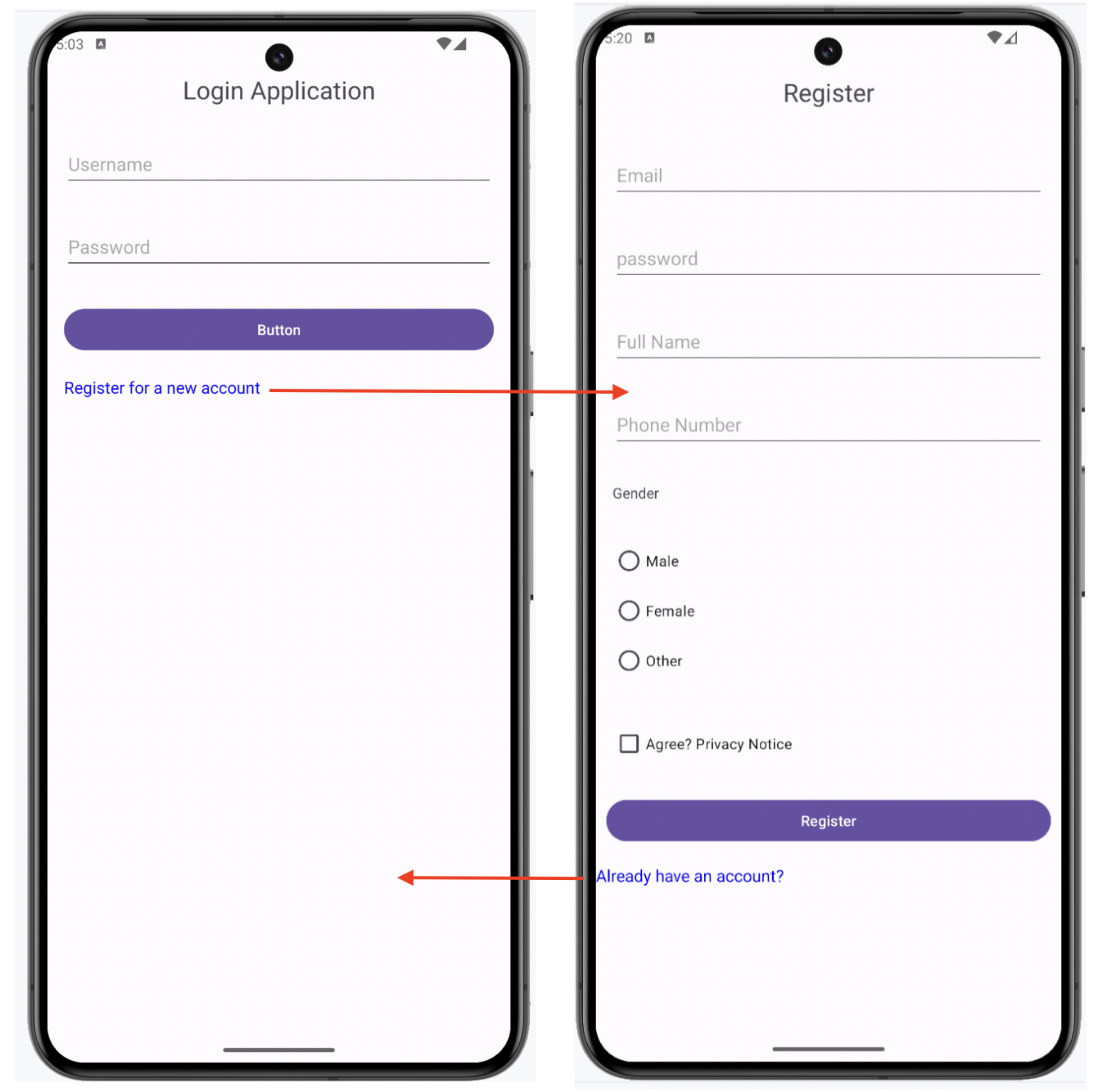
Welcome to the lab on connecting the login and registration screens in Android Studio. In this lab, you will add navigation between the login and registration screens and display toasts when buttons are clicked. This diagram shows the behavior.
Objectives
After completing this lab, you will be able to:
- Navigate between login and registration screens
- Display toasts when buttons are clicked
Key terms
- Activity: In Android, an activity is a single, focused thing that the user can do. Almost all activities interact with the user. It represents a screen with a user interface.
- Intent: An abstract description of an operation to be performed. It is used to start activities and services.
- findViewById: A method used to find a view by its ID.
- setOnClickListener: A method used to set a click listener for a view.
- startActivity: A method used to start a new activity.
- Toast: A small message that pops up on the screen for a short period of time.
- Toast.makeText: A method used to create a Toast message.
Running the lab
This is an instructional lab that does not require a Skills Network lab environment. You will follow this lab on your local machine using Android Studio.
Instructions
Step 1: Update the
Login Activity
Open the
MainActivty.javafile inapp > src > main > java > com > example > loginapplication > MainActivity.Add an
OnClickListenerto the "Register for a new account" link and the "Login" button.
package com.example.loginapplication;

import android.content.Intent; // Importing Intent for navigation between activities
import android.os.Bundle; // Importing Bundle to handle activity state
import android.view.View; // Importing View to handle UI components
import android.widget.Button; // Importing Button for button UI elements
import android.widget.TextView; // Importing TextView for text UI elements
import android.widget.Toast; // Importing Toast for displaying short messages

import androidx.appcompat.app.AppCompatActivity; // Importing AppCompatActivity for compatibility support

public class MainActivity extends AppCompatActivity {

    @Override
    protected void onCreate(Bundle savedInstanceState) {
        super.onCreate(savedInstanceState); // Call the superclass's onCreate method
        setContentView(R.layout.activity_main); // Set the layout for this activity

        // Find the TextView for the registration link and the Login button
        TextView registerLink = findViewById(R.id.login_register_link);
        Button loginButton = findViewById(R.id.login_button);

        // Set an OnClickListener for the registration link
        registerLink.setOnClickListener(new View.OnClickListener() {
            @Override
            public void onClick(View v) {
                // Create an Intent to navigate to the RegisterViewActivity
                Intent intent = new Intent(MainActivity.this, RegisterViewActivity.class);
                startActivity(intent); // Start the registration activity
            }
        });

        // Set an OnClickListener for the Login button
        loginButton.setOnClickListener(new View.OnClickListener() {
            @Override
            public void onClick(View v) {
                // Display a Toast message when the Login button is clicked
                Toast.makeText(MainActivity.this, "User  clicked on login", Toast.LENGTH_SHORT).show();
            }
        });
    }
}
If you run the application after making this chance and select
Register for a new account, you should navigate to the
Registration screen. You can back swipe to go back to the Login
screen.
Step 2: Update the
RegisterViewActivity
Open the
RegisterViewActivity.javafile inapp > src > main > java > com > example > loginapplication > RegisterViewActivity.Add an
OnClickListenerto the "Already have an account?" link and the "Register" button.
package com.example.loginapplication;

import android.content.Intent; // Importing Intent for navigation between activities
import android.os.Bundle; // Importing Bundle to handle activity state
import android.view.View; // Importing View to handle UI components
import android.widget.Button; // Importing Button for button UI elements
import android.widget.TextView; // Importing TextView for text UI elements
import android.widget.Toast; // Importing Toast for displaying short messages

import androidx.appcompat.app.AppCompatActivity; // Importing AppCompatActivity for compatibility support

public class RegisterViewActivity extends AppCompatActivity {

    @Override
    protected void onCreate(Bundle savedInstanceState) {
        super.onCreate(savedInstanceState); // Call the superclass's onCreate method
        setContentView(R.layout.register_view); // Set the layout for this activity

        // Find the TextView for the login link and the Register button
        TextView loginLink = findViewById(R.id.login_link);
        Button registerButton = findViewById(R.id.register_button);

        // Set an OnClickListener for the login link
        loginLink.setOnClickListener(new View.OnClickListener() {
            @Override
            public void onClick(View v) {
                // Create an Intent to navigate back to the MainActivity
                Intent intent = new Intent(RegisterViewActivity.this, MainActivity.class);
                startActivity(intent); // Start the login activity
            }
        });

        // Set an OnClickListener for the Register button
        registerButton.setOnClickListener(new View.OnClickListener() {
            @Override
            public void onClick(View v) {
                // Display a Toast message when the Register button is clicked
                Toast.makeText(RegisterViewActivity.this, "User  clicked on register", Toast.LENGTH_SHORT).show();
            }
        });
    }
}
Step 3: Update the
AndroidManifest.xml
- Ensure both activities are declared in the
AndroidManifest.xmlfile.
<activity
    android:name=".RegisterViewActivity"
    android:exported="false" />
<activity
    android:name=".MainActivity"
    android:exported="true">
    <intent-filter>
        <action android:name="android.intent.action.MAIN" />
        <category android:name="android.intent.category.LAUNCHER" />
    </intent-filter>
</activity>
Step 4: Run the application
- Ensure your Android virtual device (AVD) is set up from the previous lab.
- Select the Run button in Android Studio.
- Select your AVD and wait for the application to launch.
- Verify that you can navigate between the login and registration screens and that the appropriate toasts are displayed when buttons are clicked.
Conclusion
You have now successfully connected the login and registration screens and added toast messages for button clicks. This skill will be crucial as you continue to develop more complex UIs and navigation flows in your Android applications.
Author
UL